The Approval Chain & Actions
Once a step is submitted, the assigned approver must take action to progress or correct the workflow. Let's learn about approvals, rejections, delegation, and expiration.
Approvals CRUD Operations & Inbox Filters
The Approvals Inbox holds all requests pending your authorization. Below are the CRUD buttons and filter options available:
1. Approving a Step
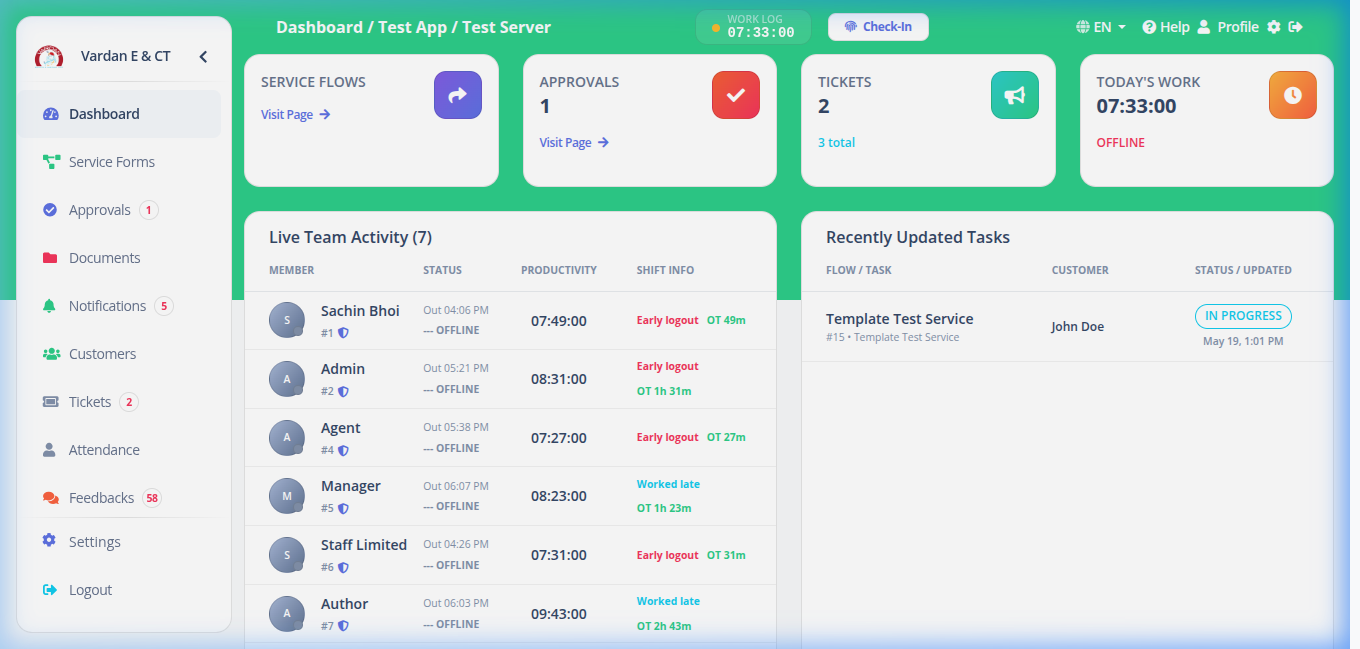
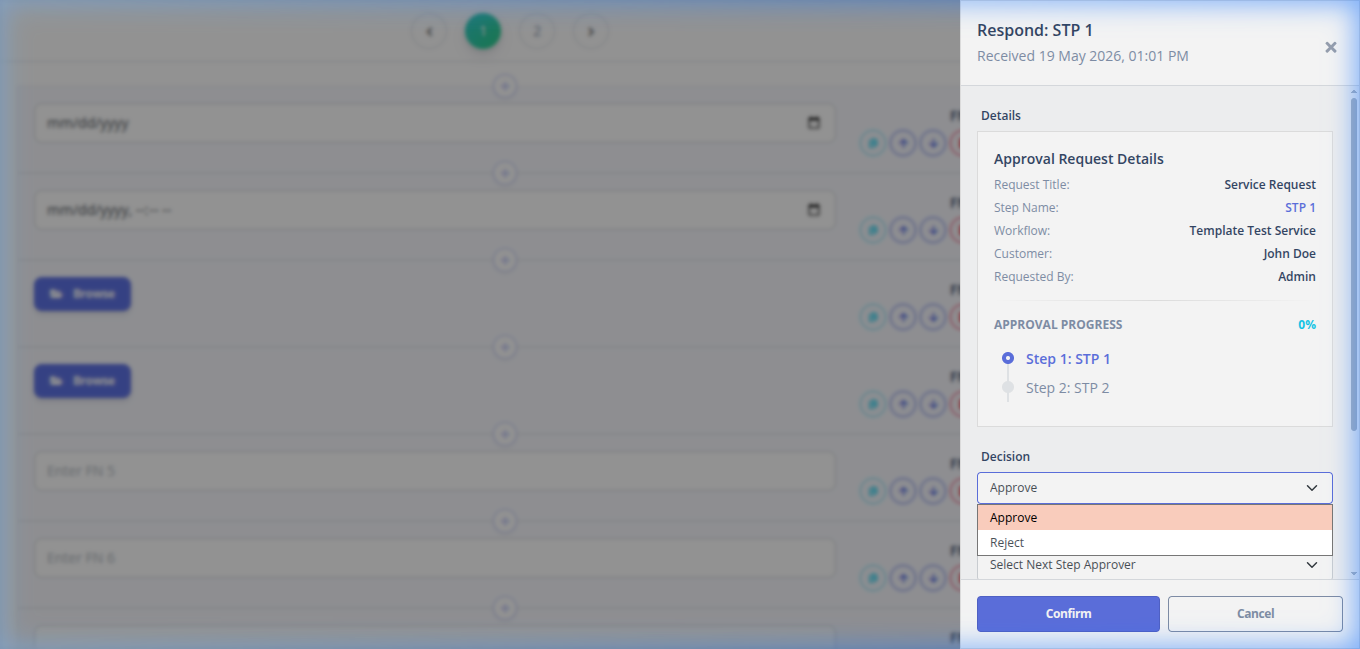
When you are assigned as the Approver for the current active step, the workflow will appear in your Approvals Inbox. To approve:
- Open the approval request from the table.
- Review the fields filled by the staff.
- Add any comments under Approval Comments.
- Select the Next Step's Approver (if this is not the final step).
- Click Approve. The system will advance the instance to the next step.
2. Rejecting & Reverting a Step
If there is a mistake in the data or if document checks fail, you should reject the step:
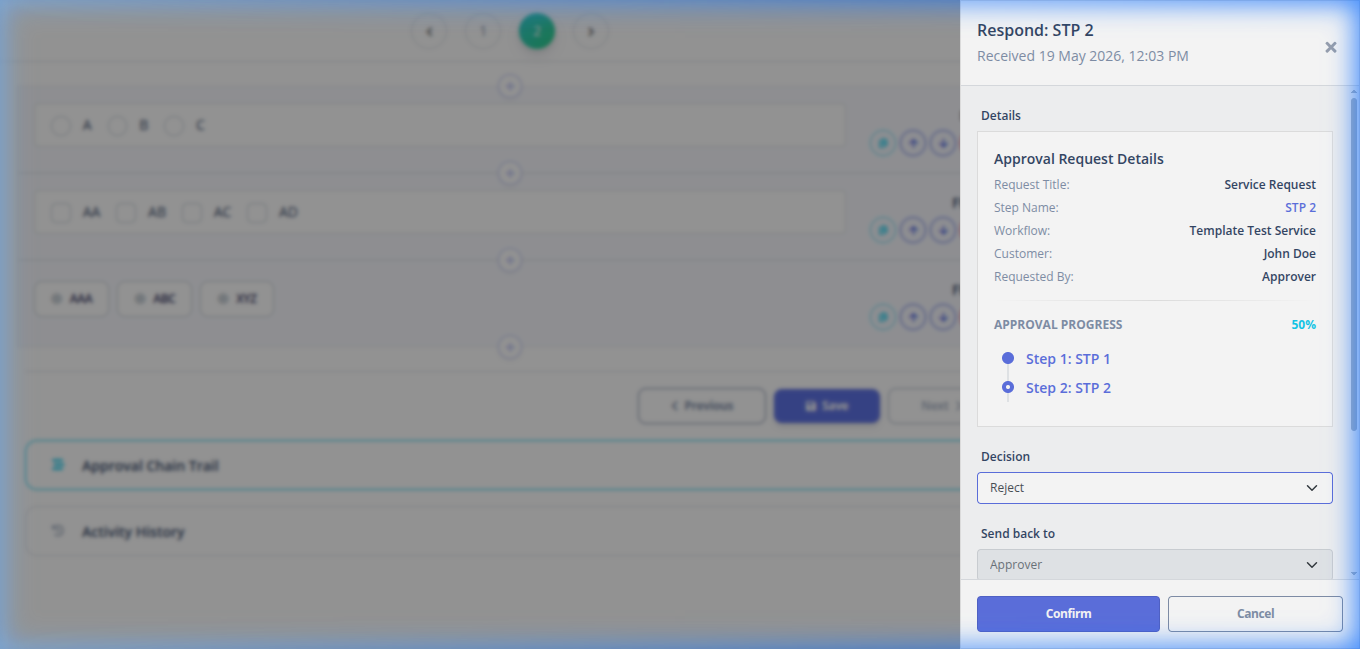
- Click Reject in the response modal.
- Reversion Logic: When a step (e.g. Step 4) is rejected, the workflow automatically rolls back to the previous step (e.g. Step 3) so the staff can correct the mistakes.
- The status of Step 3 goes back to "In Progress" and its approval request is re-opened.
Why Rejections Revert Steps
Reverting allows the previous actor to correct their inputs. The system keeps all original rejection comments in the Approval Chain Trail so everyone knows why the request was sent back.
3. Delegating or Transferring a Step
If you are unavailable or if a request needs review by a different specialist, you can use the Transfer option:
- Click Transfer Request.
- Select the new Approver from the dropdown.
- Enter the reason for transferring (e.g., "Assigned to regional supervisor for clearance").
- The system will automatically expire your pending request and generate a new pending request for the new approver.
4. Manual Expiration (De-linking Requests)
If an approval request is no longer valid (for example, if the service contract was cancelled or if the approval was submitted by mistake):
- Administrators can click the Expire button in the approvals list.
- This marks the approval request as Expired, removing it from active inbox lists but keeping its logs in the Approval Chain Trail for audit purposes.
- The active step instance is safely de-linked from the expired request, allowing a new request to be created or the step to be re-assigned.
Backend Cronjobs & Triggers Logic
Behind the scenes, the approval engine coordinates requests using schedules and triggers:
- SLA Expiry Cronjob (Scheduler): A background job executes every hour to inspect active pending requests. If a request is open longer than the template's specified SLA (e.g. 7 days), the cronjob transitions the status to
EXPIREDand dispatches an escalation email alert to the Branch Manager. - Step Transition Triggers:
When a step is marked
APPROVED, a database trigger executes:- Creates a final archive history log.
- Queries the database for the next sequential step config.
- Generates a new pending approval task and assigns it to the designated user.
- Reversion & Clean-Up Triggers: When a step is marked
REJECTED, a trigger automatically sets the current step status toREJECTED, sets the previous step status toIN_PROGRESS, and cancels/expires all other concurrent pending approvals to ensure a clean state.